
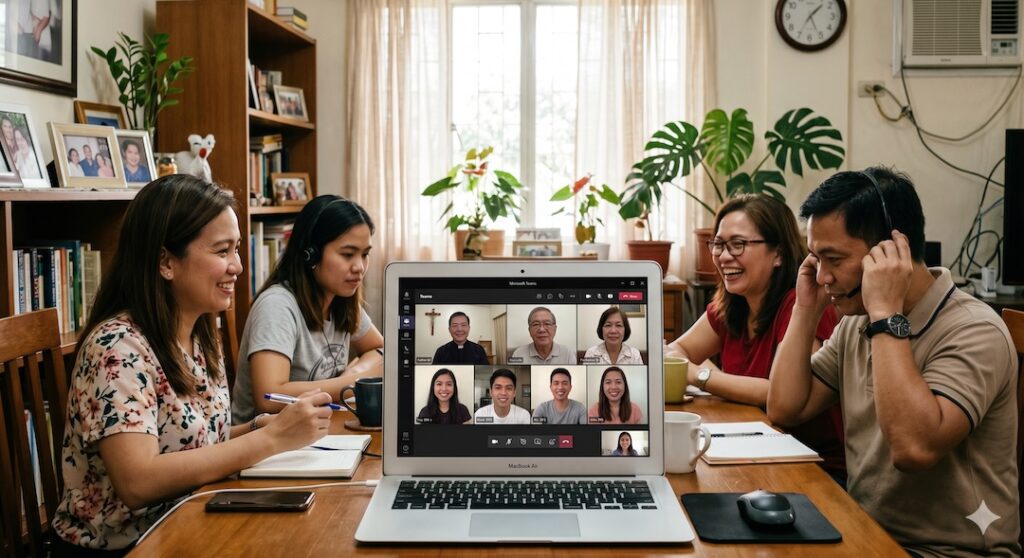
We are moving from Zoom to Teams
To maximize the benefit of our subscription to Microsoft 365, the Council and Coordinators will be using Teams, instead of the Zoom. Zoom subscription will be cancelled starting May 1, 2026.
The other benefit of the Microsoft O365 aside from the free team Meeting app are:
- 1TB of Storage – The community files, photos and videos can be saved and accessed online.
- Office 365. Licensed to use Microsoft Word, Excel, PowerPoint, Co-Pilot AI, Designer, OneNote, Forms, and ClipChamp (Video Editor)

How to use the online Meeting Team?
You may be used to use Zoom but using Teams is also similar.
To get started, the Team Meeting facilitator should have access our Microsoft account.
- On Desktop: Visit teams.microsoft.com and sign in. You can use the web version or download the desktop app.
- On Mobile: Download the Microsoft Teams app from the iOS App Store or Google Play Store.
- The “Switch”: If you already use Teams for work, click your profile picture and select “Add personal account.” Modern Teams (2026 version) allows you to toggle between them easily without logging out.
If you are just a participant in the meeting, you can join a Teams meeting without creating an account.
The process is slightly different depending on whether you are using a computer or a phone.
1. Joining on Desktop (Easiest)
On a computer, you don’t even need to download the app; you can run it entirely through your web browser.
- Click the link sent to you by the facilitator: Open your meeting invite and click “Join meeting now” or the provided URL.
- Select Browser Option: A page will open with three choices. Click “Continue on this browser.” (Google Chrome or Microsoft Edge work best).
- Permissions: Your browser will ask for permission to use your microphone and camera. Click Allow.
- Enter Your Name: Type the name you want others to see.
- Join Now: Click “Join now.” You will likely be placed in a “Lobby” until the host admits you.
2. Joining on Mobile (Phone/Tablet)
On mobile, Microsoft generally requires the Teams App to be installed, but you still do not need to sign in or have an account.
- Download the App: If you don’t have it, download “Microsoft Teams” from your app store. Do not log in.
- Click the Link: Go back to your email/invite and click the join link.
- Join as Guest: The app will open automatically and give you a button that says “Join as guest.” Tap it.
- Enter Your Name: Type your name and tap “Join meeting.”
Download Links:
- iPhone/iPad (iOS): Download from the Apple App Store.
- Android: Download from the Google Play Store.
Once the app is installed and set up as Facilitator, follow the video below how to schedule a meeting.
For more information and support you may contact Romella Herber, Michael Marasigan or Hardy Fajardo.